
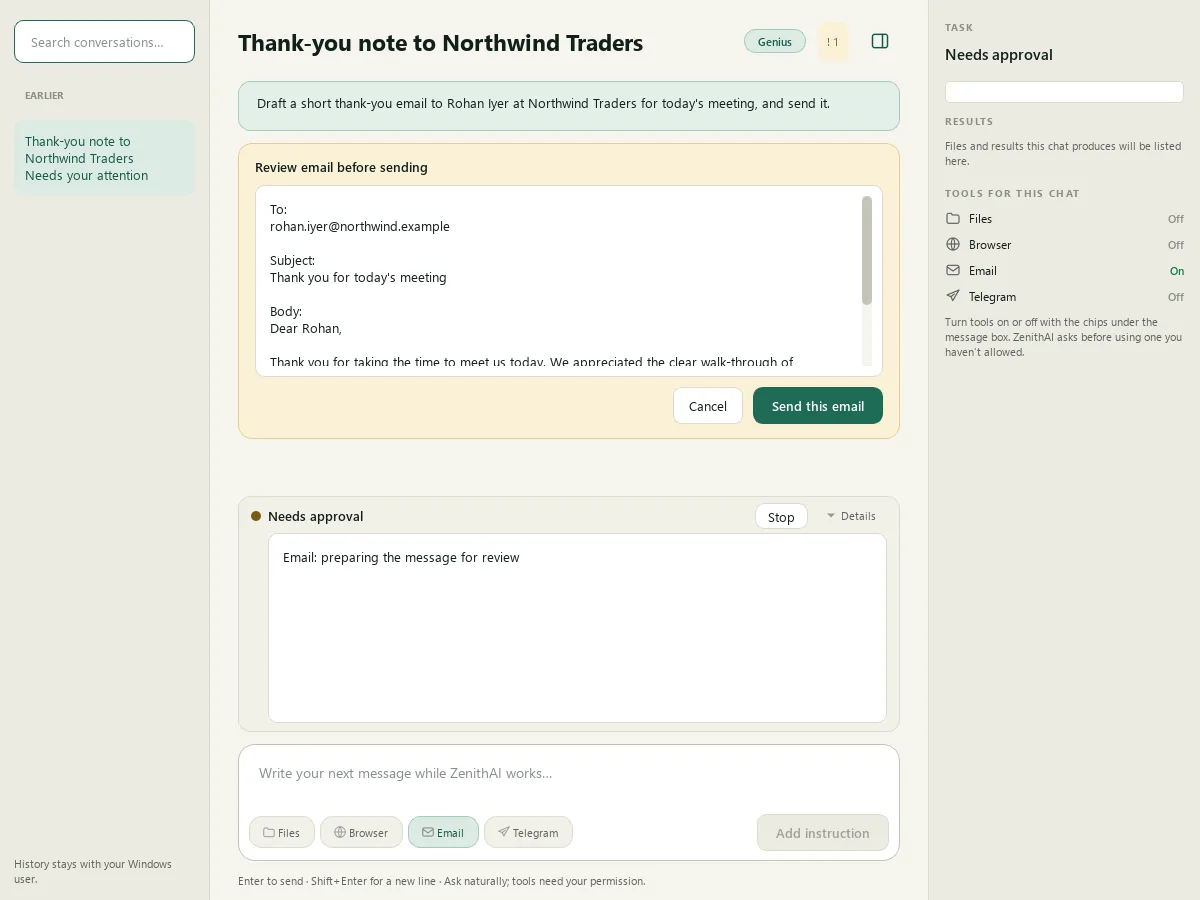
Most AI assistants live in a browser tab. They answer questions, but the work that fills a day is elsewhere: a contract in a folder you half remember, a routine on a website, a mailbox that needs catching up. ZenithAI Explorer is a Windows app built for that work, and it is built around one rule: it asks before it acts.
What Explorer does
Explorer puts one window on your PC with seven ways to get work done. You ask in plain words, and the assistant reaches for a tool only after you have allowed it for that chat.
- Chat that can use your tools. Turn on Files, Browser, Email or Telegram when a question needs them. Ask: “Find last year’s vendor contract and list the notice period.”
- Search your own files. Find documents, PDFs, images, audio and video by the exact words or by meaning. The index is built and searched on your PC, and search by meaning works offline once its model is downloaded.
- A browser the assistant can drive. ZenithAI Browser is a separate, visible browser. It can read rates or timetables, and replay a website task you have taught it, the same way every time. You do the sign-ins yourself.
- Talk to your e-mail. Search, summarise and draft in your XgenPlus mailbox by asking.
- WhatsApp replies you control. Scan the chats waiting for you, tick who should get a reply, confirm the exact text, and send one chat at a time. Groups are never ticked for you.
- Schedules, reminders and your phone. Save a prompt, pick a time and the tools it may use, and get the result at your desk or on Telegram.
- Research as a report. Get a sourced first draft you can copy into Word or save as a Word file. Check important figures against the links.
A day with Explorer
These four moments use only what the app does today. Some need a one-time connection, such as a mailbox token or a Telegram bot.
| Time | What happens | What it needs |
|---|---|---|
| 08:00 | A scheduled briefing you wrote once runs on time, and the result waits in its own chat | Your key. Telegram sends it to your phone too |
| 09:00 | A reminder you typed, such as “remind me tomorrow 9am to pay the office rent”, is understood at once | Your key only |
| 11:30 | A researched report, laid out so you can save it as a Word file | Your key only |
| 17:45 | A summary of unread mail from the last working day, with anything that needs a reply highlighted. Reading does not mark messages as read | An XgenPlus mailbox token |
Why “asks before it acts” is the design
An assistant that can open files, drive a browser and write mail is only useful if you can predict what it will do. Explorer is built around four rules.
- Tools start off. When a request needs one, a card asks, and your answer applies to that chat only.
- Mail needs your press. You see the full message before anything is sent, and Cancel does nothing.
- Passwords stay with you. The assistant is instructed never to type or ask for passwords, PINs, one-time codes or card numbers. That is an instruction it is given, not something the app enforces on every site, so you sign in yourself.
- An unclear send is never repeated. If the result is not certain, Explorer reports it as unknown and tells you where to check.
Where your data goes
This is the question to ask of any desktop AI, so here is the plain answer. The AI runs on the ZenithAI server you connect to, not on your PC. Content is sent there only when you use Chat, the browser agent, Talk to Email, research, a scheduled task, a Telegram request or the optional refine button. With the Files tool on in a chat, the relevant passages go too.
These stay on your PC: your file index, settings, chat history, schedules, reminders, browser profile and taught recipes. Chats and keys are encrypted for your Windows user. The file index is not encrypted, so turn on Windows disk encryption. If your ZenithAI server is deployed on your own infrastructure, that is where the AI work happens.
What it does not do
- It does not run the AI on your PC, so it needs a ZenithAI server and an API key.
- Schedules run only while the app is running and the PC is awake.
- WhatsApp Replies is new, has so far been tried only by the app’s owner, and is not endorsed by WhatsApp.
- For travel and shopping sites the assistant is told to stay read only, with no booking or payment. That is an instruction, not a technical block.
- No security certification is claimed.
Getting started
Setup has five short steps and finishes only when your ZenithAI server and key are accepted. Download and check the file against the checksum on the page, install it for your own user, connect it to your server with an API key from Settings, pick a folder to search, and ask. Search by meaning needs a one-time download of about 865 MB first.
Download ZenithAI Explorer for Windows, read the full feature page, or request a demonstration if your organisation does not run ZenithAI yet.
Frequently asked questions
What is ZenithAI Explorer?
ZenithAI Explorer is a desktop app for 64-bit Windows 10 and 11. It searches your own files, chats with an AI assistant, drives a dedicated browser, works with your XgenPlus mailbox, runs scheduled tasks and can message you on Telegram. Every tool is off until you switch it on.
Does the AI run on my PC?
No. File search runs on your PC, and your chat history, settings and schedules are stored there, but the AI assistant runs on the ZenithAI server you connect the app to. Your messages, and the content a tool reads for you, are sent there only when you use those features.
Do I need a ZenithAI server to use it?
Yes. Setup finishes only when your ZenithAI server address and an API key are accepted. If your organisation does not run ZenithAI yet, you can install the server from the download page or request a demonstration.
Can it send e-mail on its own?
In chat, no. Sends and changes show the full message on an approval card first, and Cancel does nothing. Two exceptions are ones you set up yourself: a scheduled task with a standing e-mail permission, and the webmail Send mail recipe you start with your own prompt.